Wrong times or units
Applies to v1.7+ · ~3 min read · Troubleshooting
Check workstation preferences and source data when ETAs, route dates, or displayed units look wrong.
Check time zone and date display
- Open Settings.
- Review Time zone and Date display under Workstation.
- Compare them with the route date and source-file values.
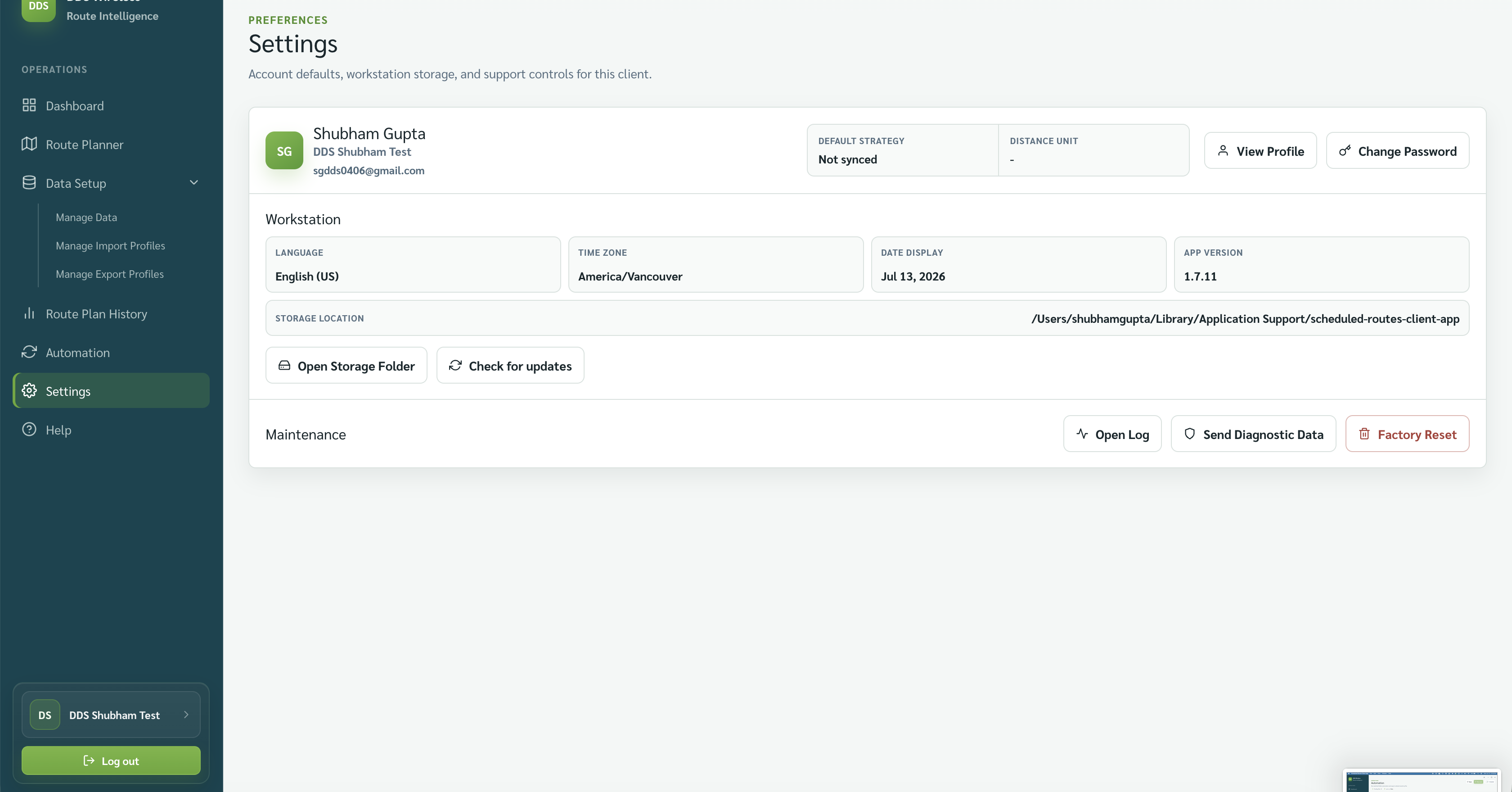
Check the source file
- Confirm times use one consistent format.
- Confirm a window start is earlier than its end.
- Confirm the file's route date is the intended operating date.
- Confirm vehicle and job capacity values use matching units.
Distance units
Distances are shown in miles. There is no setting to change the distance unit in v1.7.
Related: Job file reference · Vehicle file reference · Settings overview