Logs and diagnostics
Applies to v1.7+ · ~3 min read · Settings and support
Use the maintenance tools when DDS support asks for evidence from the workstation.
Open the log
- Open Settings.
- Under Maintenance, select Open Log.
- Note the time the problem occurred and keep the log available for support.
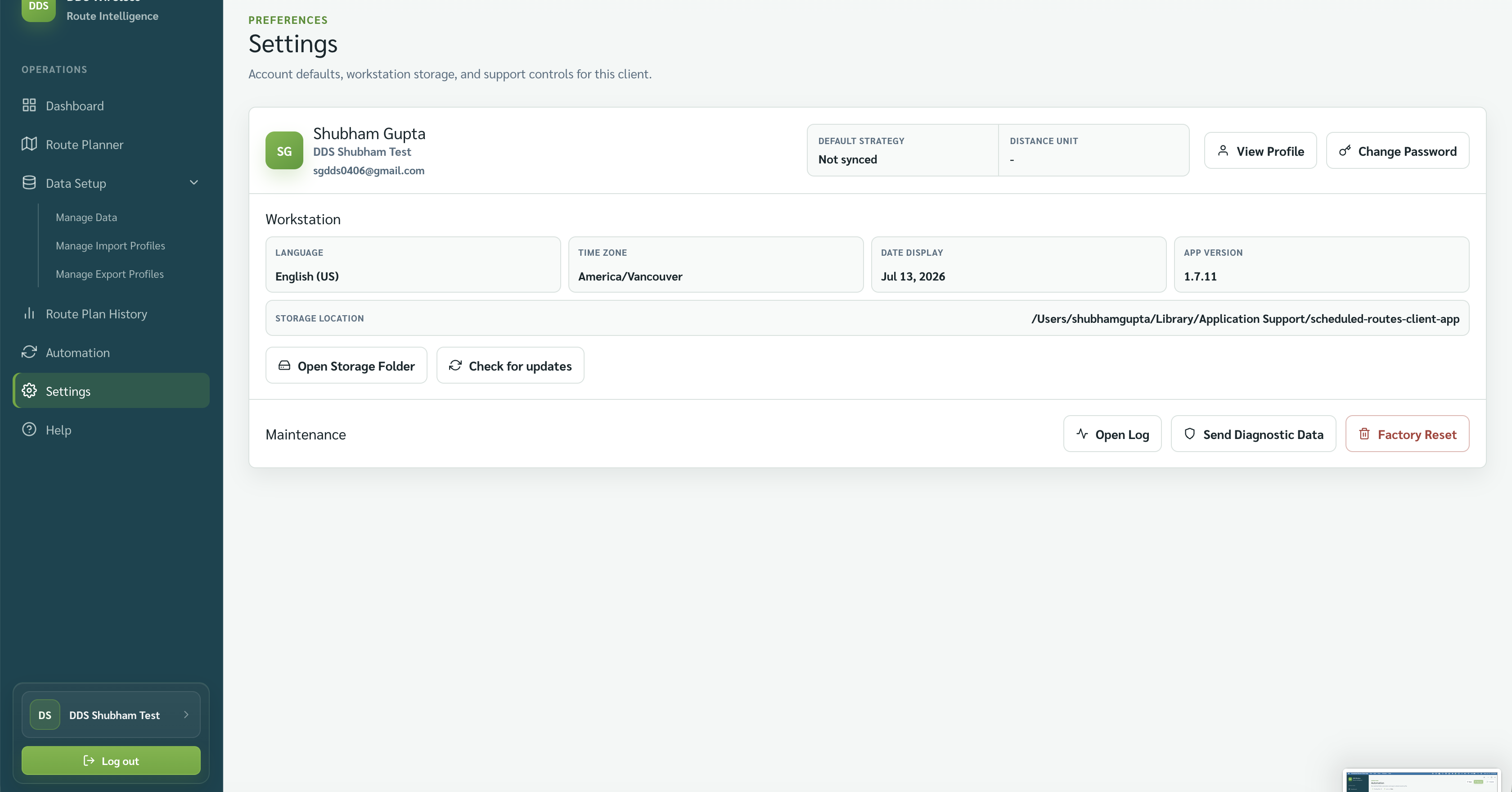
Send diagnostic data
- Reproduce the problem if it is safe to do so.
- Return to Settings.
- Select Send Diagnostic Data and follow the confirmation shown.
Include useful context
Tell support the route date, what you selected, what you expected, what happened, and the approximate time.
Diagnostics detail coming soon
Fuller diagnostics — exactly what is collected, where it is sent, and the messages shown — will be documented once the feature is finalized.
Related: Settings overview · Storage, updates and version · Upload failed or mapping not recognized