Manage contacts
Applies to v1.7+ · ~3 min read · Import guides
Maintain the contact records used with jobs and locations. Contacts is an address book that fills itself — every job you import saves its pickup and delivery addresses here automatically, and you can also add contacts by hand.
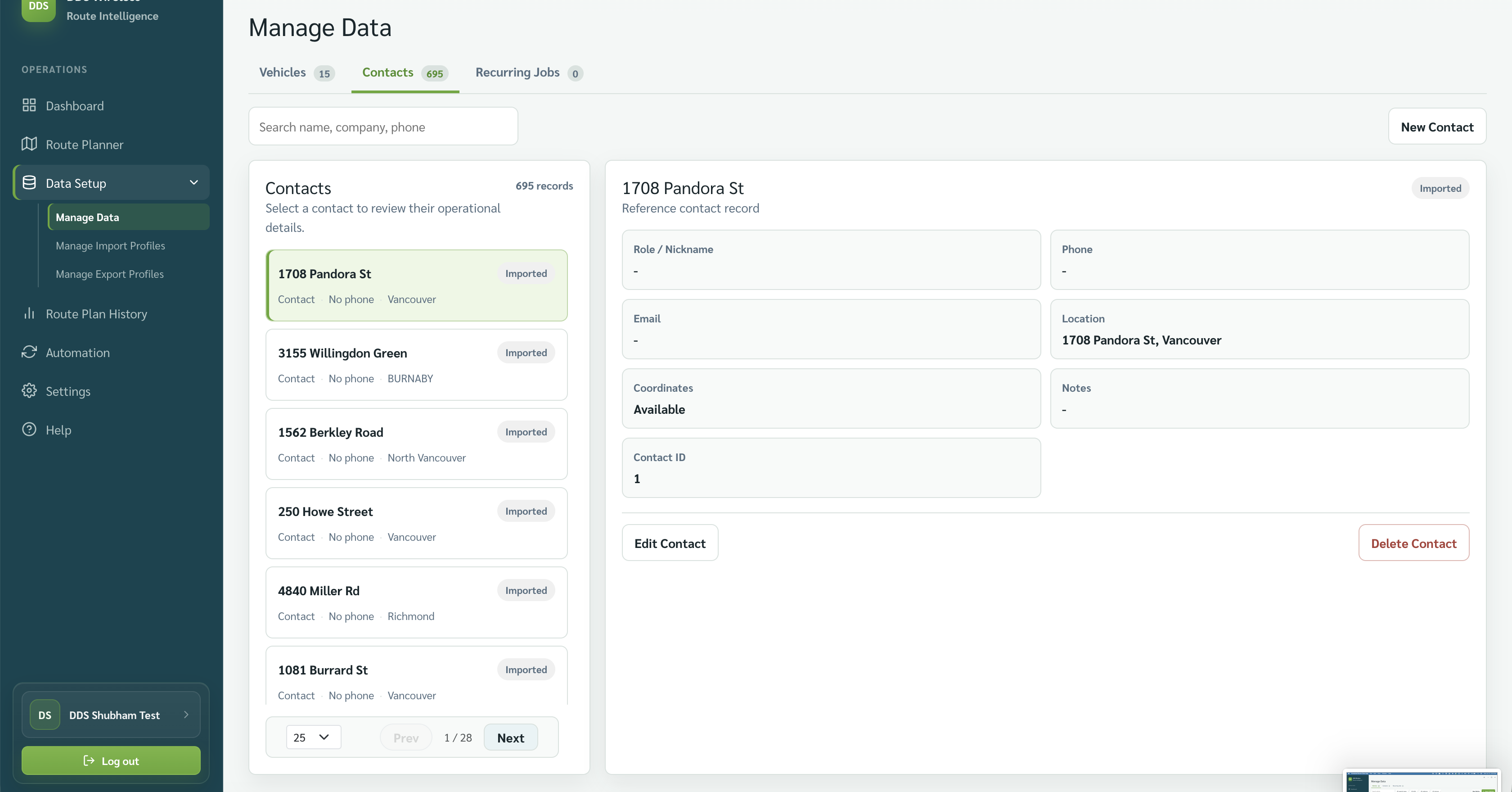
Review contacts
- Go to Data Setup → Manage Data.
- Select Contacts.
- Search by name, company, or phone, then select a contact to review its details.
Add or edit a contact
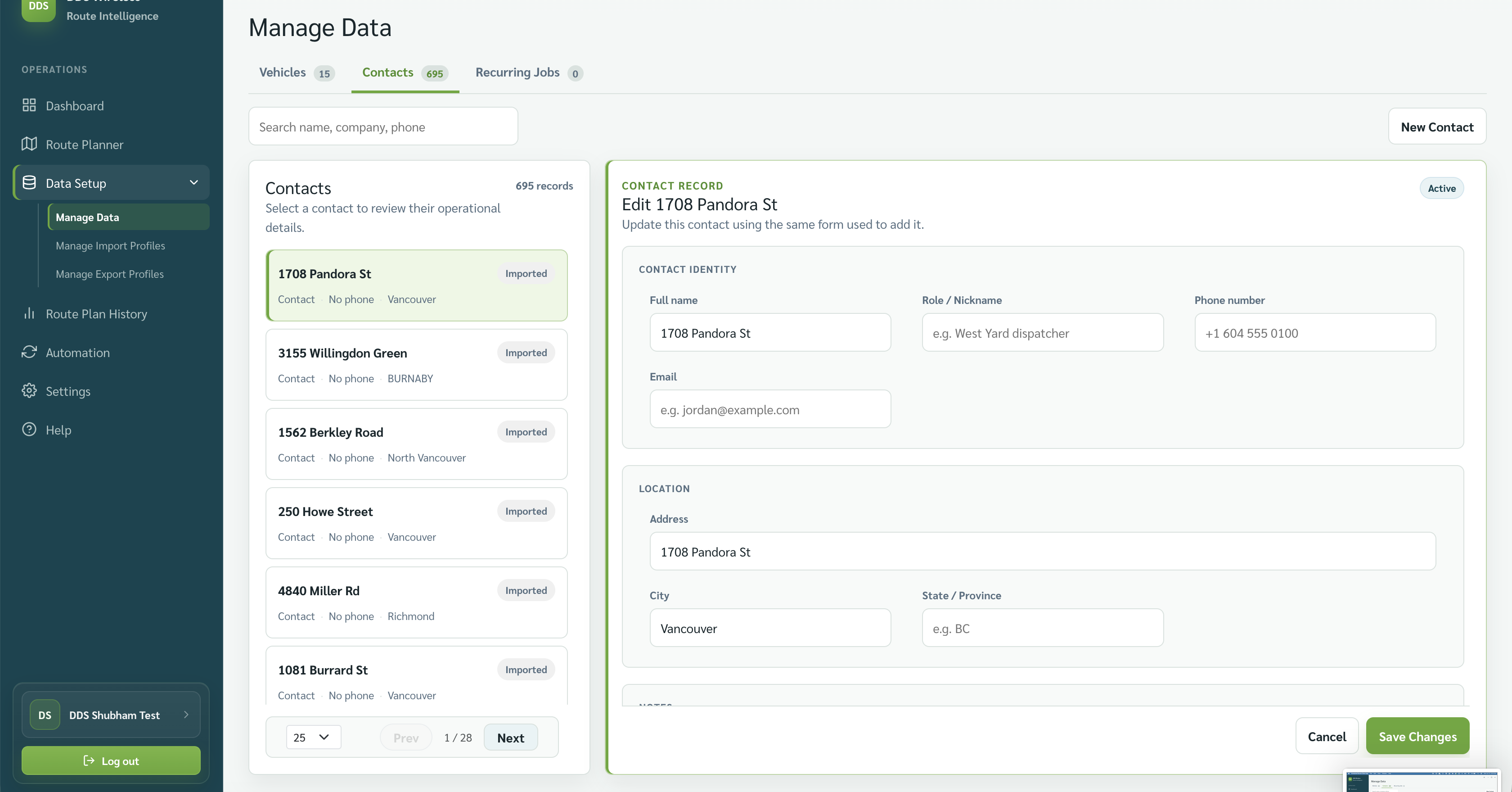
- Select New Contact, or select an existing contact and choose Edit Contact.
- Complete the visible contact fields: full name, role or nickname, phone number, email, and location.
- Select Save Changes.
Delete a contact
Select the contact, choose Delete Contact, and review the confirmation before continuing.
Contacts are rebuilt from jobs
Deleting a contact does not affect jobs that already reference it — those jobs stay intact. Because Contacts is populated automatically from imports, a deleted contact is recreated the next time a matching job is imported.
Related: Manage vehicles · Recurring jobs · Import your jobs