Where did my data go?
Applies to v1.7+ · ~3 min read · Troubleshooting
Use this checklist when Route Planner or a data list appears empty.
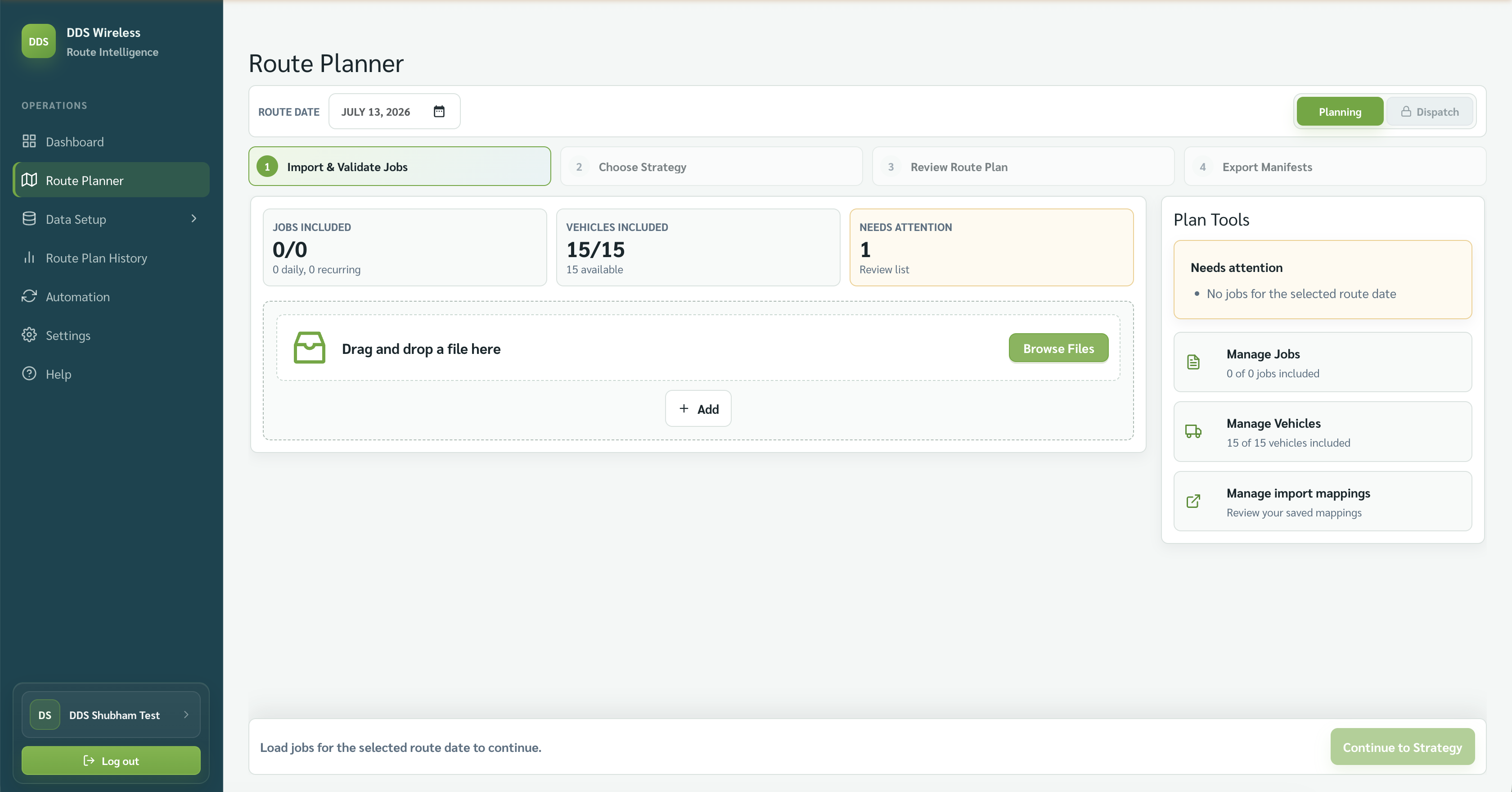
Route Planner shows zero jobs
Check the Route date first. Jobs are loaded for a selected date, and the screen can correctly show zero for a different day.
A saved item is not in the current plan
Vehicles, contacts, recurring jobs, saved mappings, route plans, and exported files live in different screens. Check the relevant page:
- Data Setup → Manage Data for vehicles, contacts, and recurring jobs.
- Manage Import Profiles for saved mappings.
- Route Plan History for earlier plans and manifests.
After maintenance
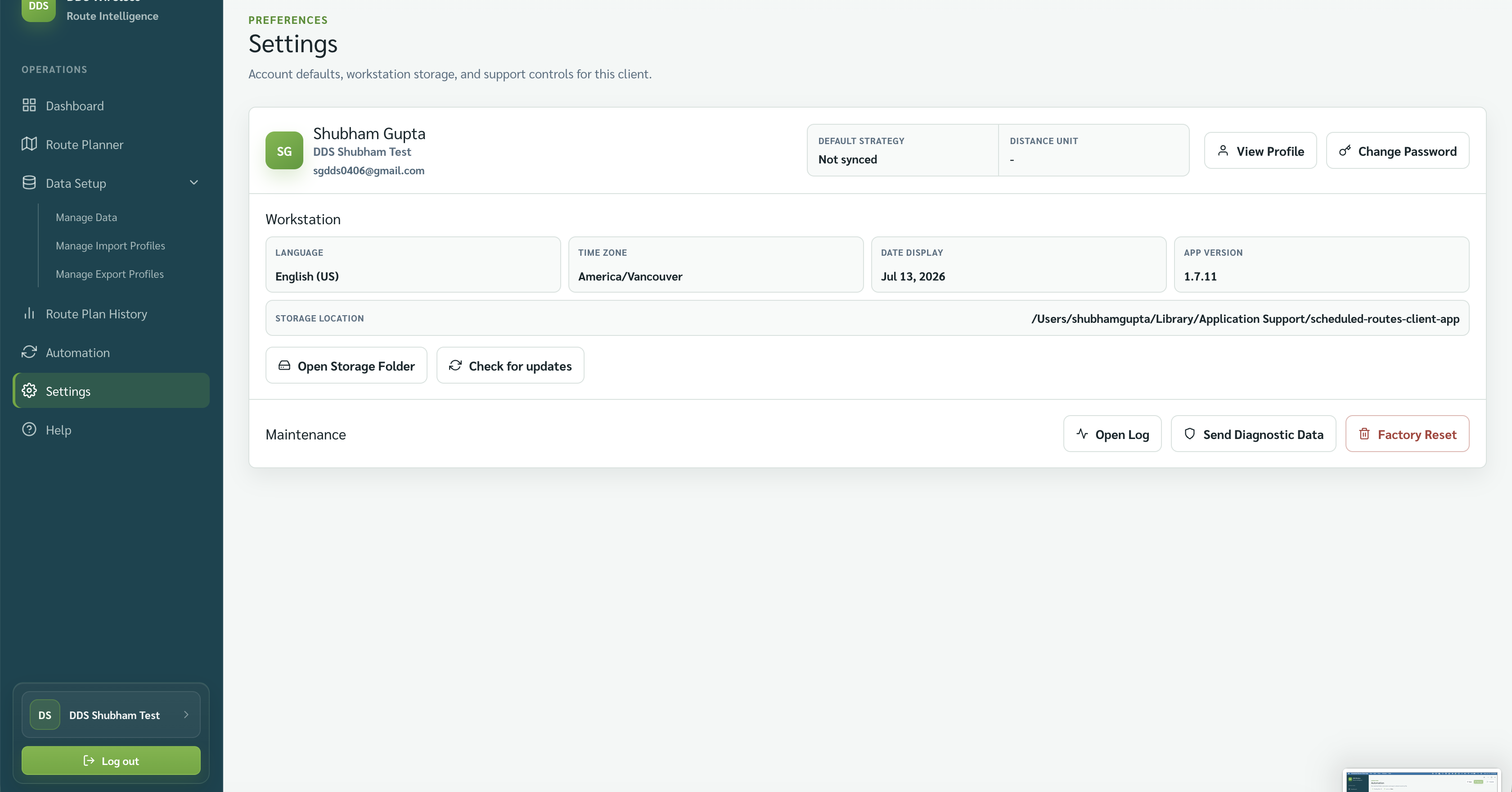
Settings shows a Factory Reset action. Do not use it while troubleshooting missing data unless support has confirmed that reset is required.
Reset scope
Factory Reset removes all local data and returns the app to a brand-new state — there is no undo. There is no separate "Clear Data" action in Settings in v1.7; to clear only the loaded jobs, use Clear Jobs in Route Planner. See Clear data vs Reset workstation.
Related: Clear data vs Reset workstation · Route Plan History · Logs and diagnostics