Built-in exports (PDF, Excel, CSV)
Applies to v1.7+ · ~3 min read · Export and manifests
Turn an optimized route plan into a driver manifest using one of the three built-in export formats — PDF, Excel, or CSV — with no custom setup required.
Before you start
Complete the first three Route Planner steps (Import & Validate Jobs → Choose Strategy → Review Route Plan) so the Export Manifests step is available.
Steps
-
In the Route Planner, continue to Step 4 · Export Manifests.
-
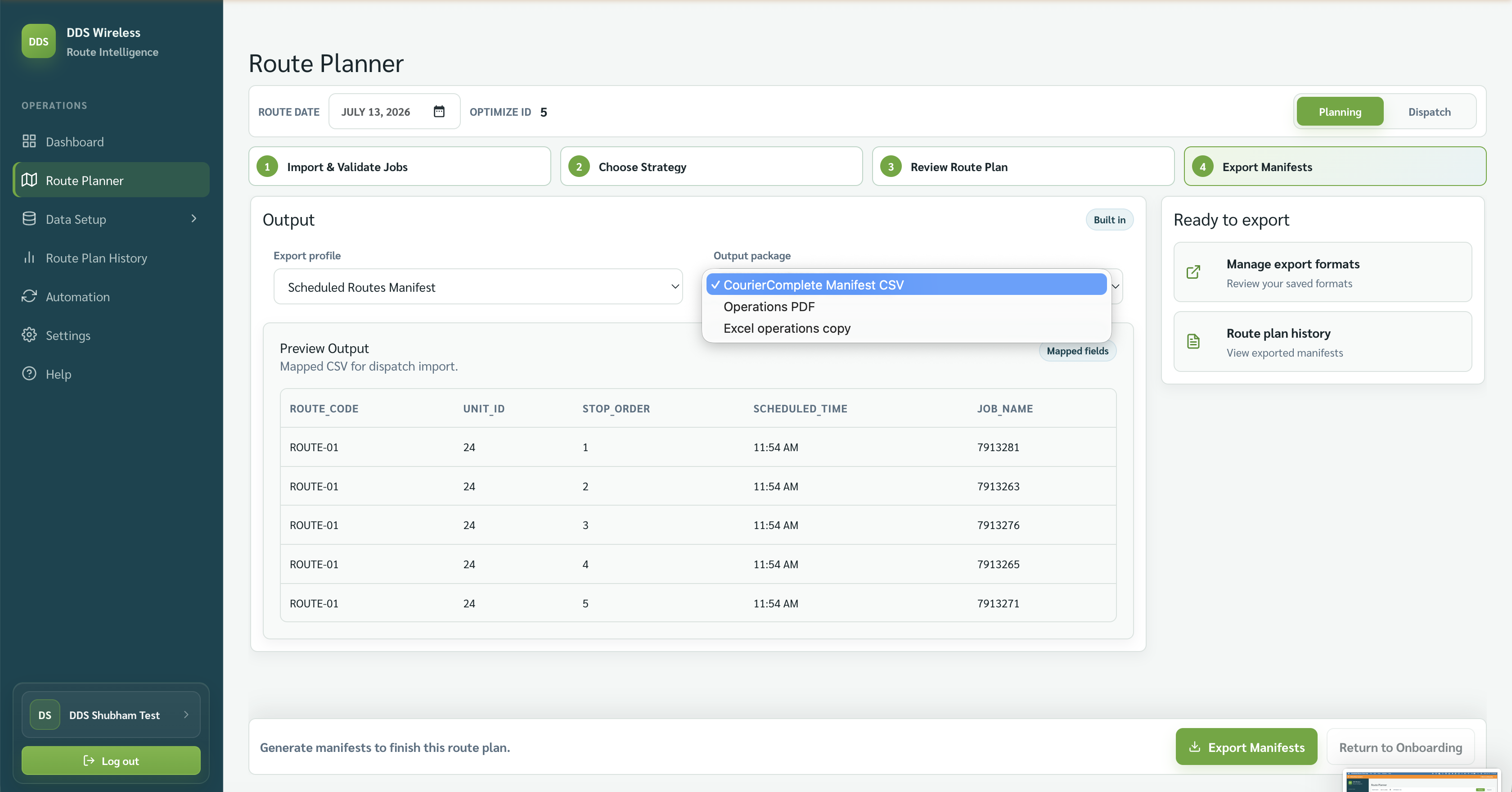
In the Export profile field, choose a profile from the list.
No profile yet?
The built-in export formats are always available without creating a custom export format. If you want a fully custom column layout, see Create a custom export format.
-
Under Output package, select one of the three packages produced by your export profile:
Format Best when PDF you print or email manifests to drivers Excel you share an editable spreadsheet with dispatch or warehouse CSV you import the manifest into another system -
Select Export.
-
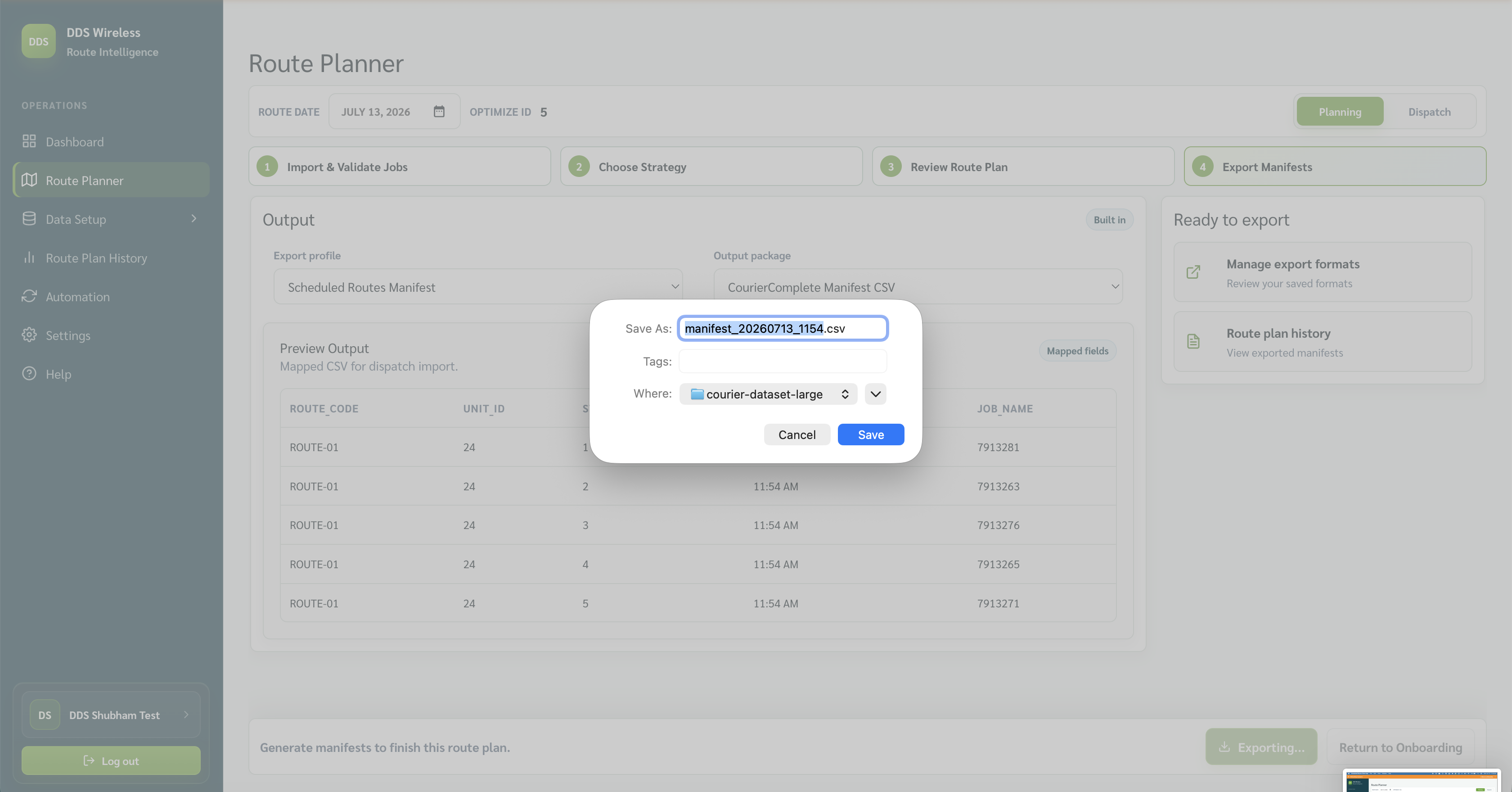
When the file-save dialog opens, choose a location and save the file.
-
To produce the manifest again — for example after fixing a job — select Regenerate. This opens the save dialog again so you can save a new file.
Result
Your manifest is saved to the location you chose. A copy is also retained in Route Plan History, so you can retrieve it later without re-running the export.
Related: Route Plan History · Create a custom export format · Review your route plan · Quick start: your first route plan