Saved mappings
Applies to v1.7+ · ~5 min read · Import guides
Saved mappings remember how columns in your vehicle or job file connect to Scheduled Routes fields. Review them whenever a source file changes.
Review vehicle mappings
- Open Data Setup → Manage Import Profiles.
- Select Vehicle Profiles.
- Choose a profile from the list and review Last used, Mapping health, File name, and Mapping Preview.
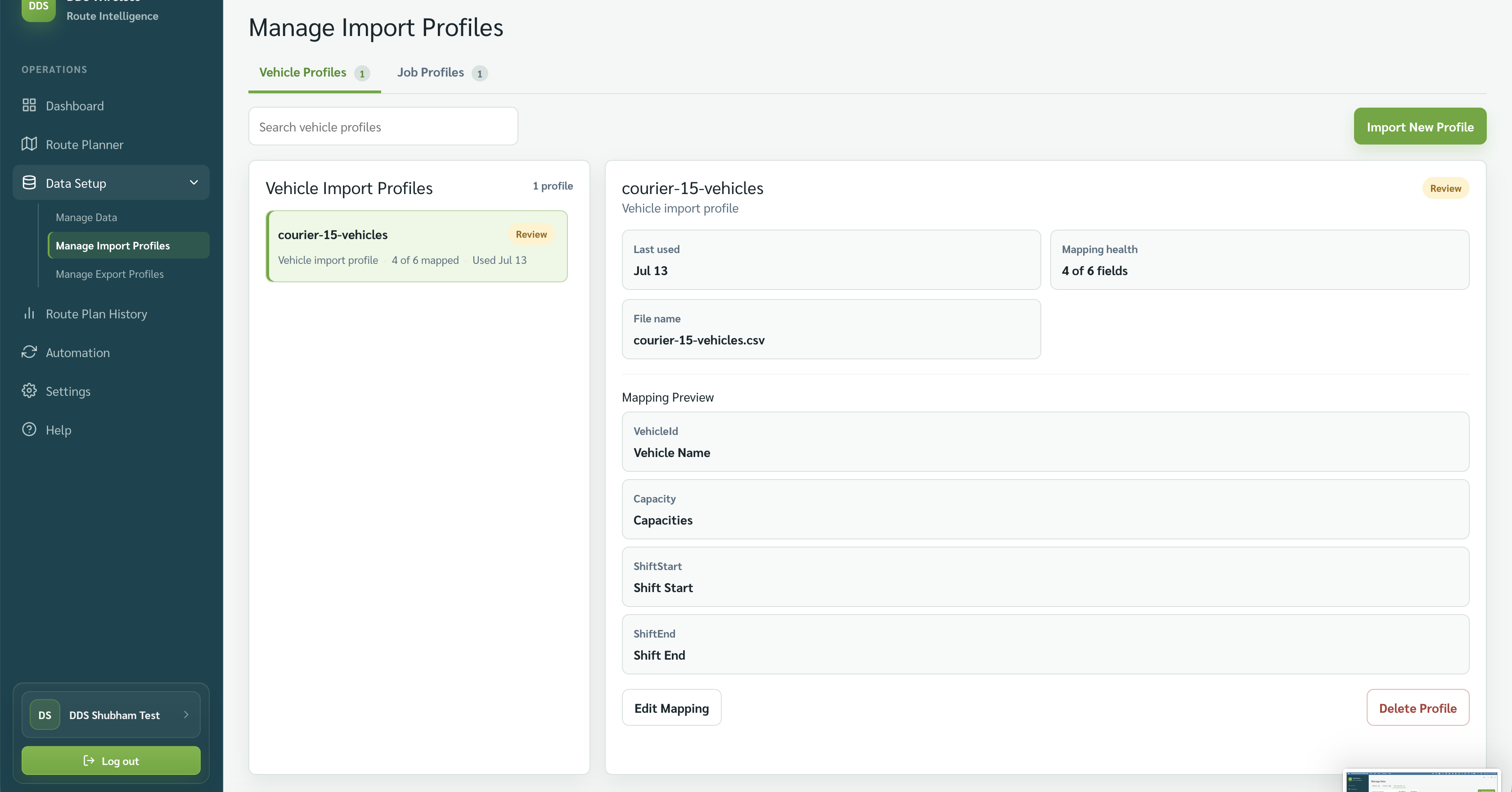
- Select Edit Mapping to open the full vehicle mapping.
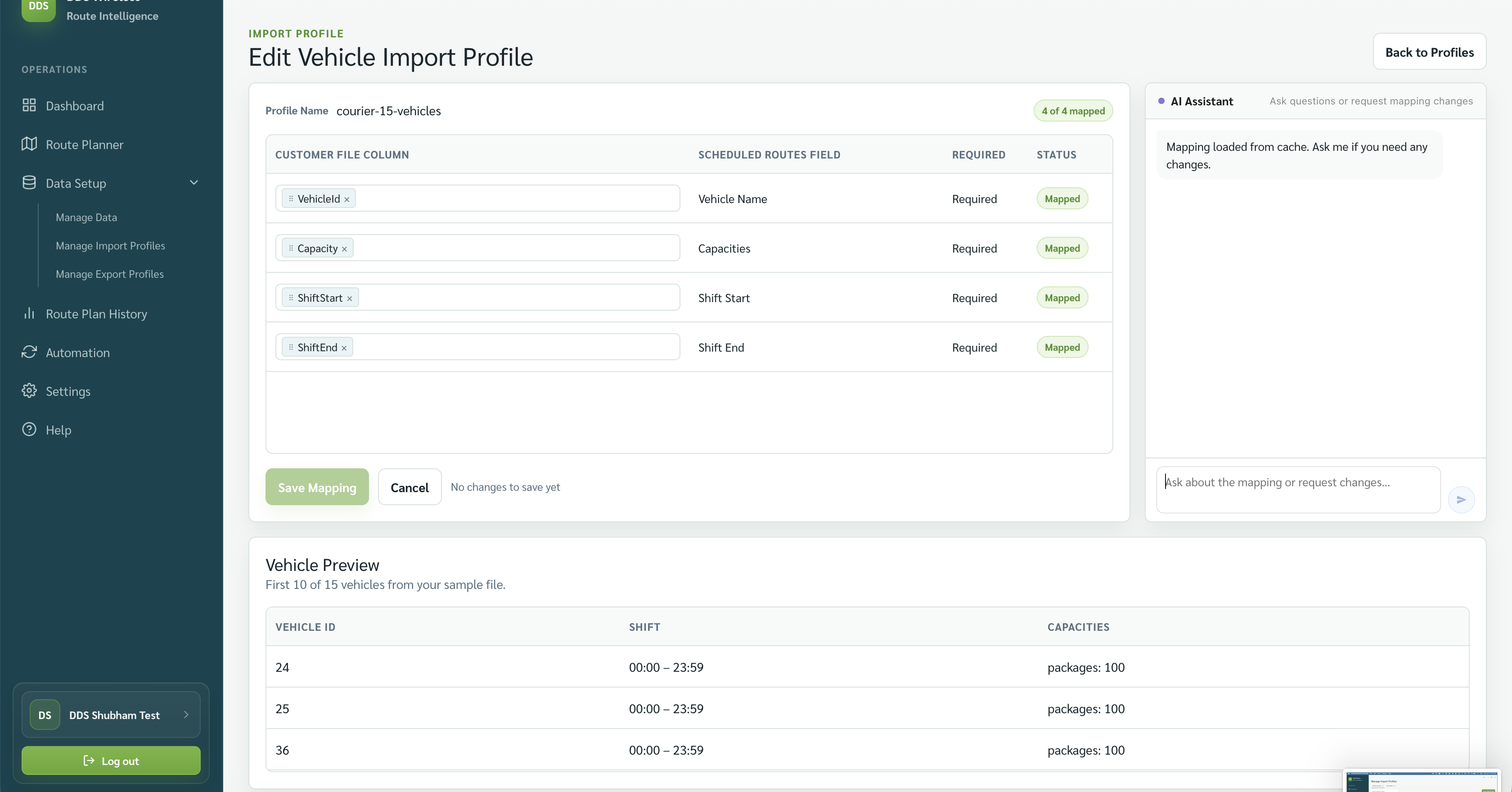
- Check every customer-file column, its Scheduled Routes field, required status, and mapping status.
- Review Vehicle Preview, then select Save Mapping if you changed anything.
Review job mappings
- Return to Manage Import Profiles and select Job Profiles.
- Choose a profile and review its file name, mapping health, and mapping preview.
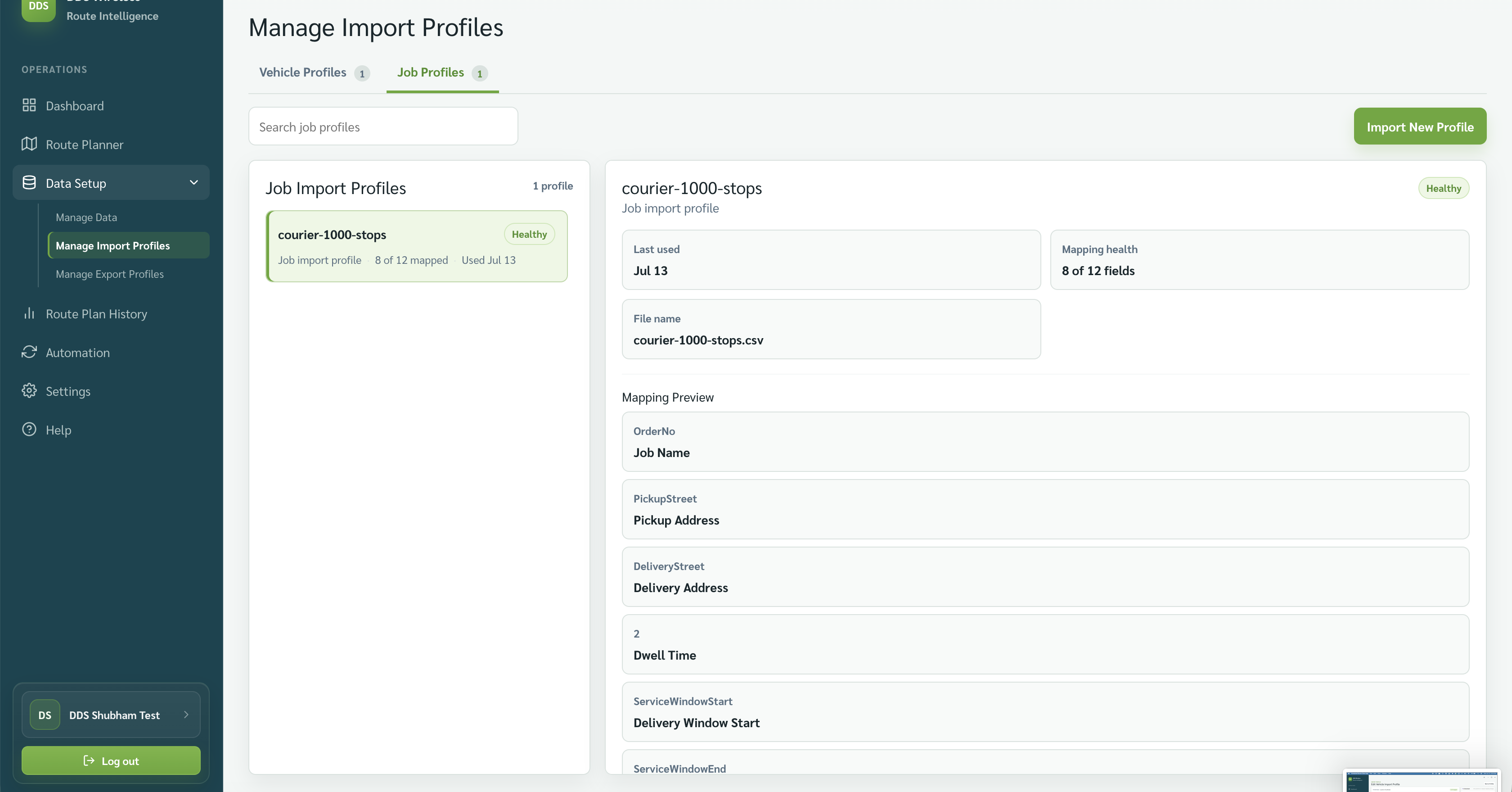
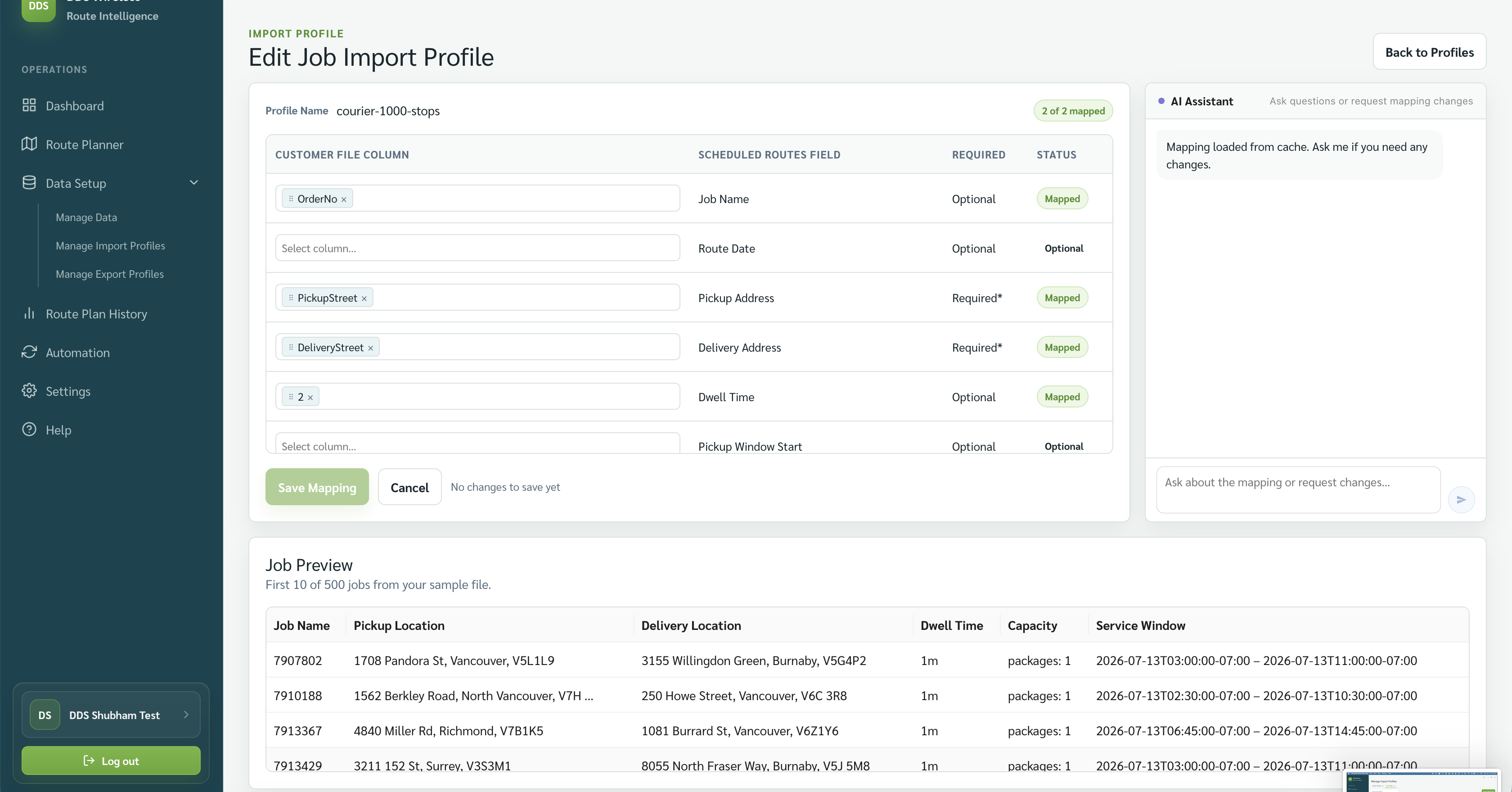
- Select Edit Mapping to review required and optional job fields.
- Compare the mapping with Job Preview and select Save Mapping if you made a change.
Create or remove a mapping
- Select Import New Profile to create another vehicle or job mapping from a representative file.
- Select Delete Profile only when the mapping is no longer used by daily imports or Automation.
When a file layout changes
Do not keep using an old mapping without review. Open Edit Mapping, correct the changed columns, verify the preview, and save before importing operational data.
Related: Import your vehicles · Import your jobs · Vehicle file reference · Job file reference