Review the route plan
Applies to v1.7+ · ~3 min read · Plan routes
After optimization runs, the Review Route Plan step shows you the full result before any manifests are generated. Use it to confirm the plan is sound — or to catch problems early.
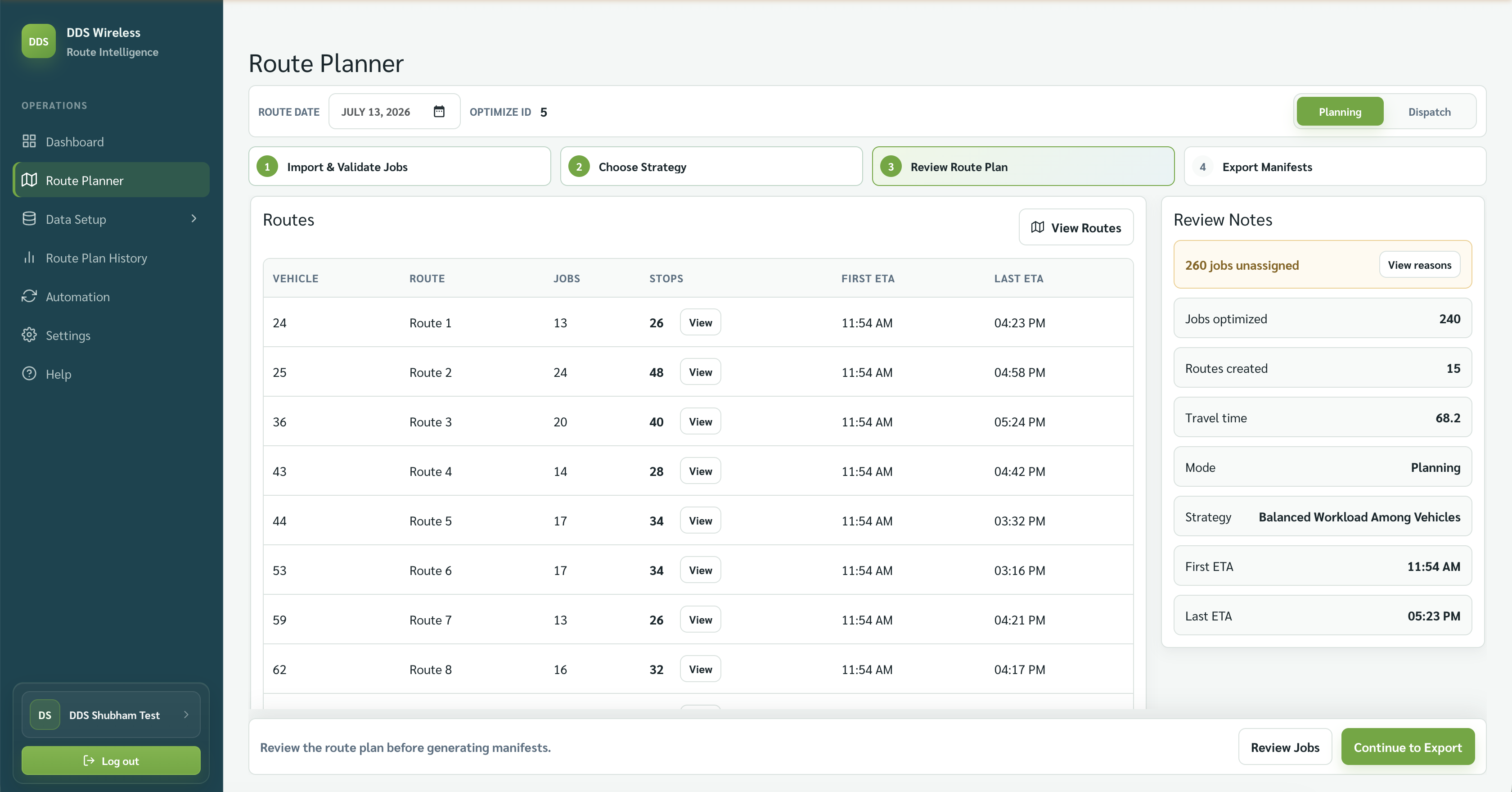
1. Read the summary cards
Four cards at the top give you a quick health check:
| Card | What it tells you |
|---|---|
| Jobs optimized | How many jobs were successfully placed into routes |
| Routes created | How many vehicles have at least one stop |
| Unassigned | Jobs the engine couldn't place — with a View reasons link |
| Travel time | Total driving time across all routes |
2. Check the unassigned count
If Unassigned is greater than zero, select View reasons before moving on. The app lists each unassigned job and the reason it was excluded.
Don't export with a high unassigned count
A high number usually means a data problem you can fix in minutes. See Fix unassigned jobs for the most common causes and their fixes.
A small number of unassigned jobs may be acceptable — for example, jobs that are genuinely outside your coverage window for the day. Use your judgment.
3. Read the Routes table
Below the cards, the Routes table shows one row per vehicle that has work assigned:
| Column | What it shows |
|---|---|
| Vehicle | The vehicle ID |
| Route | Route identifier for this vehicle's run |
| Jobs | Number of jobs on the route |
| Stops | Number of stops (a job has a pickup stop and a delivery stop) |
| First ETA | Estimated time of the driver's first stop |
| Last ETA | Estimated time of the driver's last stop |
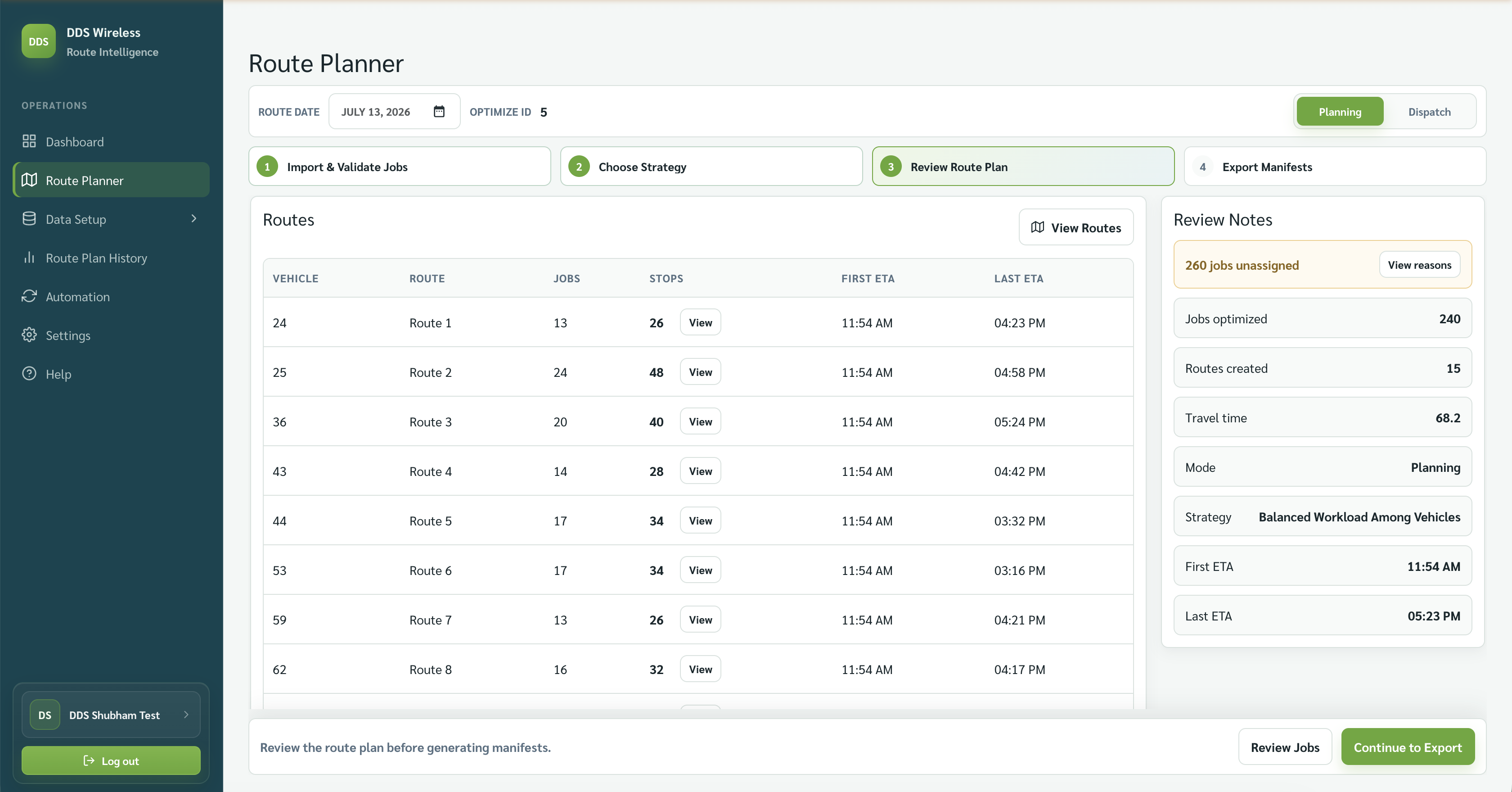
Look for outliers — a vehicle with far more stops than others, a last ETA that runs very late, or a route that looks unexpectedly short. These can indicate an issue with the underlying data.
4. View all routes on the map
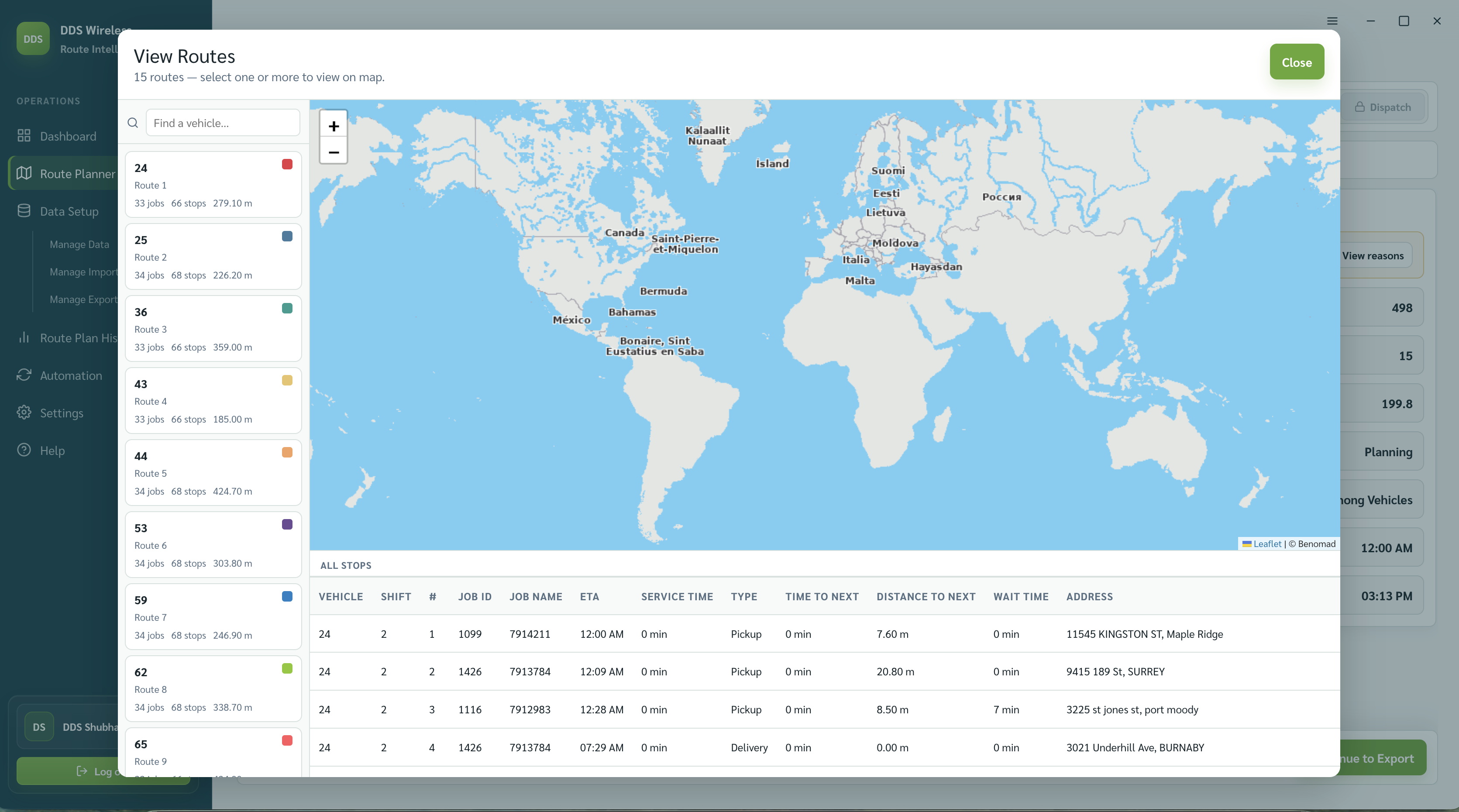
Select View All Routes to open a map showing every route as a coloured path. Use this to spot geographic anomalies — for example, a vehicle crossing the territory of another, or a stop that appears far outside its expected zone.
5. Decide: proceed or go back
The plan is ready to export when:
- Jobs optimized matches the number of jobs you imported (or the difference is explained by intentionally unassigned jobs).
- No route has a last ETA that exceeds your acceptable end-of-day time.
- The map shows routes that make geographic sense.
If something looks wrong, go back to Choose Strategy and re-run with a different strategy, or fix the underlying data and re-import.
When you're satisfied, select Continue to Export.
Related: Daily planning workflow · Fix unassigned jobs · Choosing a strategy · Built-in exports