Unassigned reason codes
Applies to v1.7+ · ~3 min read · Troubleshooting
The Unassigned Jobs window lists a plain-language reason and a numeric code for each affected job.
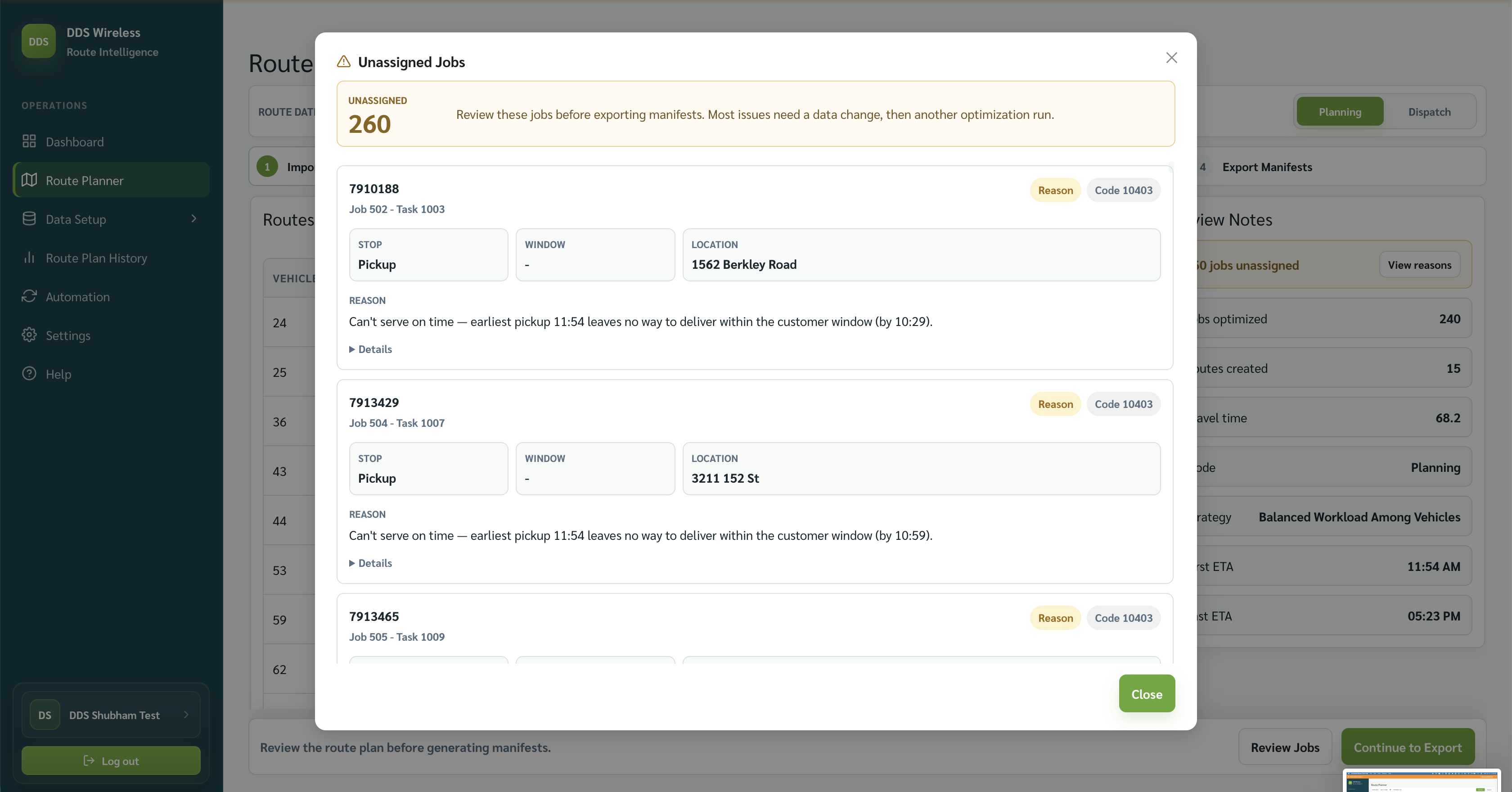
How to use a code
- Read the reason text first; it explains the planning constraint that could not be met.
- Note the job name, stop, window, and location.
- Correct the job or vehicle data.
- Re-run optimization and confirm the job is no longer listed.
Reasons visible in the supplied screen
The supplied screen shows jobs that cannot be served within their customer windows. It also shows numeric codes, but the screenshot does not define those codes.
Reason-code catalogue coming
A full v1.7 reason-code catalogue will be published as its own page. Until then, use the plain-language reason text shown beside each job in the app.
Related: Jobs unassigned warnings · Fix unassigned jobs · Review the route plan