Storage, updates and version
Applies to v1.7+ · ~3 min read · Settings and support
Find the workstation's local storage location, app version, and update check.
Storage location
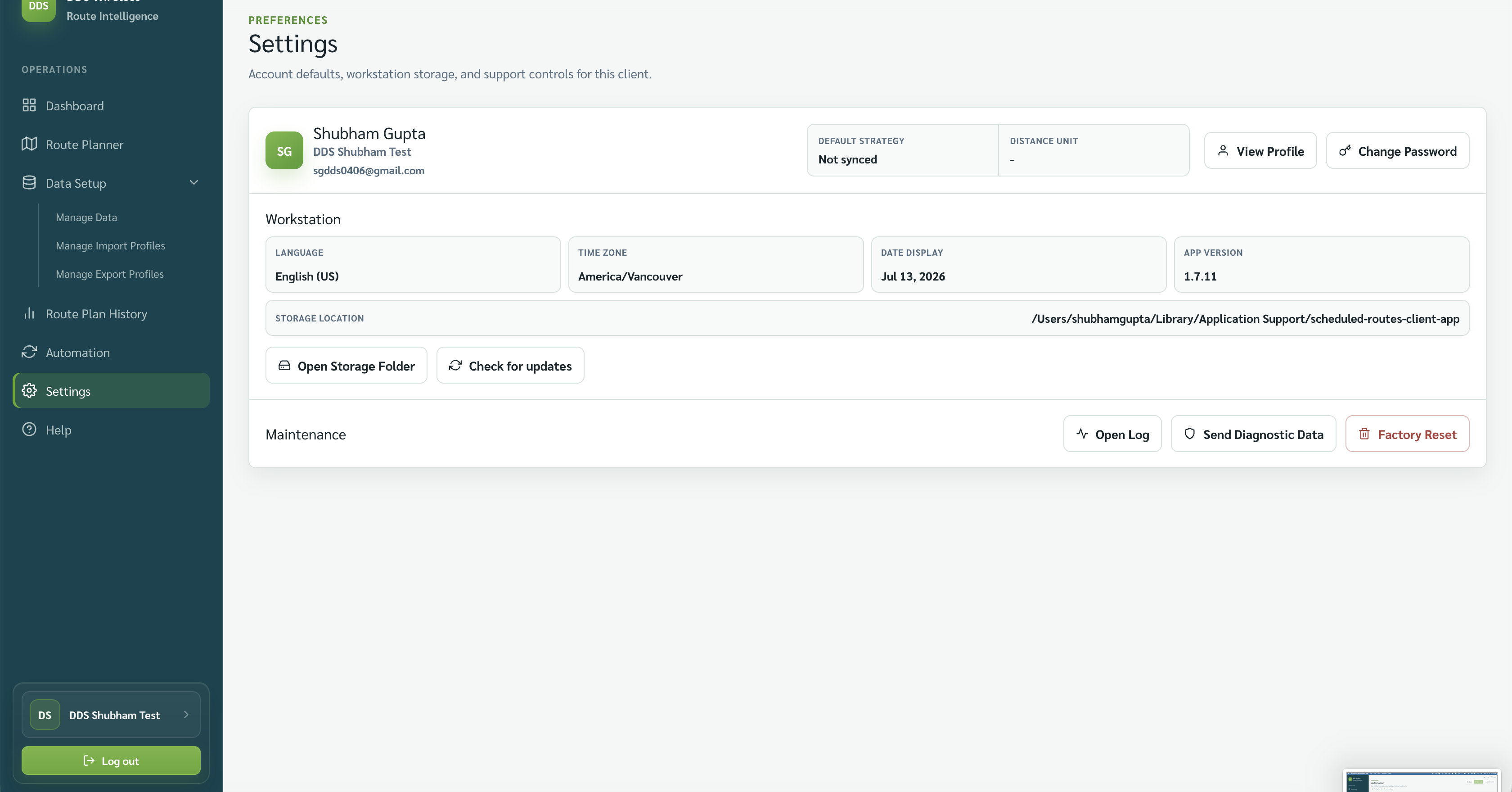
Open Settings and read Storage location under Workstation. Select Open Storage Folder to open it.
Version and updates
The same panel shows App version and Check for updates.
Do not move app files manually
Use the app's controls or instructions from support. Moving or deleting items in the storage folder can make saved data unavailable.
Local data and updates
All your app data stays local on this workstation. There is no built-in backup, so keep your own copies of any exported manifests you need to retain. Updates are downloaded and installed from the download page — no administrator access is required, but the app restarts to finish an update.
Related: Updating the app · Settings overview · Where did my data go?