Fix unassigned jobs
Applies to v1.7+ · ~4 min read · Plan routes
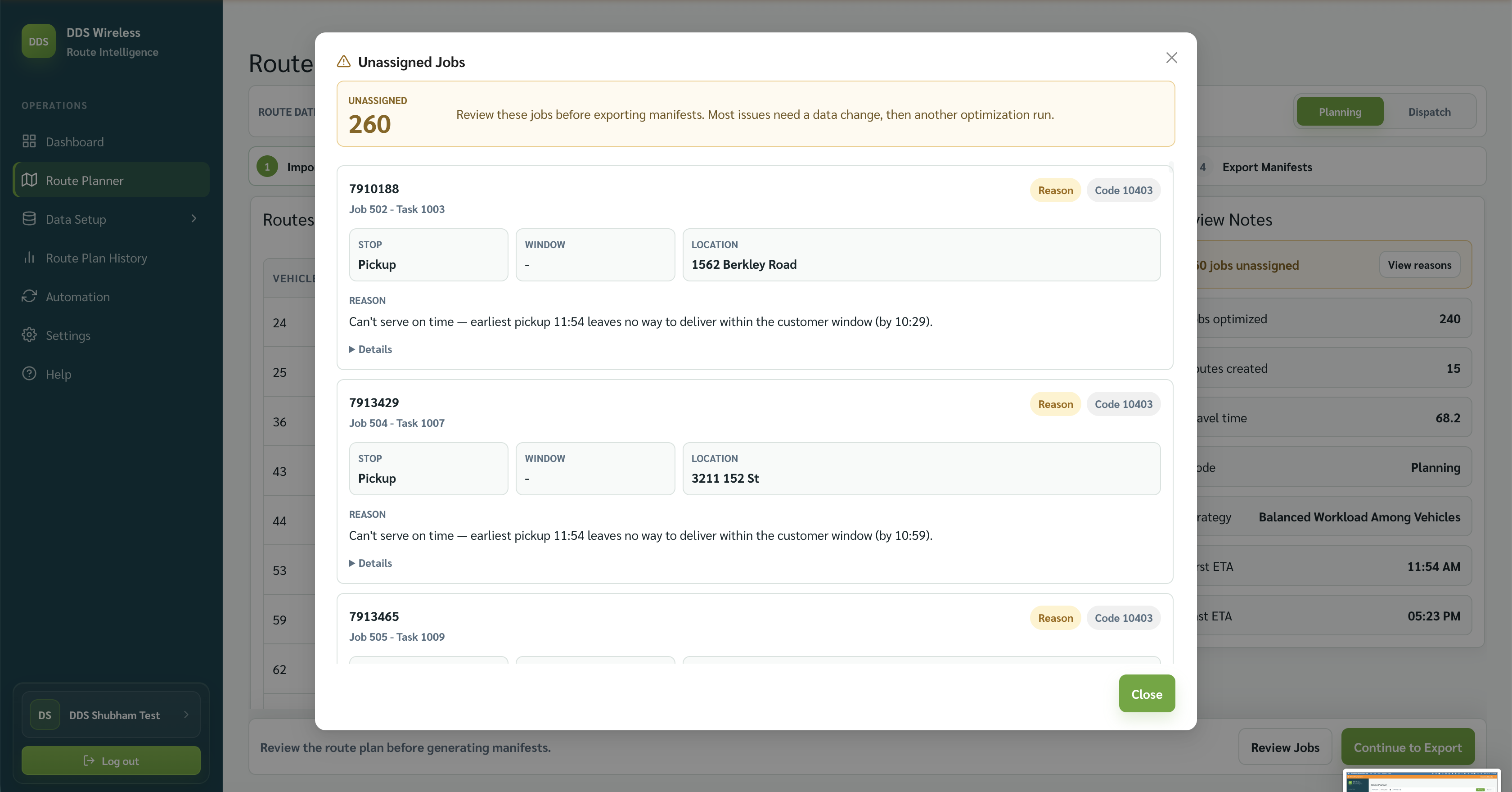
After optimization runs, the Unassigned card on the Review Route Plan step shows jobs the engine couldn't place into any route. Select View reasons to see each job and its reason code. The sections below cover the most common causes and what to fix.
Most fixes are a data change followed by returning to Choose Strategy to re-run optimization.
Symptom: many jobs unassigned, reason "no start location"
Why it happens. Every vehicle needs a Start location (depot) — the address where the driver begins their day. Without it the engine can't calculate travel to or from that vehicle's stops, so it excludes the vehicle entirely. If most of your fleet is missing depots, a large portion of jobs will be unassigned.
This is the most common cause of a high unassigned count.
Fix.
- In the left nav, go to Data Setup → Manage Data → Vehicles.
- Select the vehicle that is missing a Start location.
- Select Edit and enter the depot address in the Start location field.
- Repeat for all affected vehicles.
- Return to Route Planner and re-run optimization from Choose Strategy.
Check during vehicle import
When importing vehicles, confirm the Start location column is mapped. The import mapping screen highlights unmapped required fields.
Symptom: specific jobs unassigned, reason "time window cannot be met"
Why it happens. Each job has a time window — the earliest and latest time a stop can be serviced. If no vehicle can travel to that stop and arrive within the window (given the vehicle's shift and other stops on the route), the engine leaves the job unassigned.
Fix.
- In View reasons, note the job IDs affected.
- Check the time window in your source jobs file. Common problems:
- The window is too narrow (e.g. 15-minute delivery window in a congested area).
- The window falls outside any vehicle's shift.
- Widen the time window in your source file and re-import the jobs using Replace Jobs.
- Re-run optimization from Choose Strategy.
If you can't change the time window
Consider whether an earlier shift start for a nearby vehicle would make the window reachable, and edit that vehicle's shift accordingly.
Symptom: jobs unassigned, reason "capacity exceeded"
Why it happens.
Each vehicle has a capacity (for example, packages: 100). If the total demand of jobs on a route would exceed the vehicle's capacity, the engine leaves the excess jobs unassigned rather than overloading the vehicle.
Fix.
- Check whether vehicles have accurate capacity values in Data Setup → Manage Data → Vehicles.
- If a vehicle's capacity is set too low, select Edit and correct it.
- If vehicles are genuinely full, consider whether any inactive vehicles can be activated: select a vehicle and use Enable.
- Re-run optimization from Choose Strategy — try Minimize Vehicles Used to see how many vehicles are actually needed, or Balanced Workload Among Vehicles to spread demand more evenly.
Symptom: jobs unassigned, reason "required skill not available"
Why it happens. Some jobs require a specific skill (for example, a refrigerated vehicle, or a driver with a hazmat certification). If no active vehicle has that skill, the engine can't place the job.
Fix.
- In View reasons, identify which jobs list a skill requirement.
- Go to Data Setup → Manage Data → Vehicles and check which vehicles carry that skill.
- If the right vehicle is disabled, Enable it.
- If no vehicle has the skill at all, either add the skill to an appropriate vehicle (select Edit → Skills) or update the job's skill requirement in your source file and re-import.
- Re-run optimization from Choose Strategy.
General principle
All four causes above are data problems, not engine errors. Fix the underlying vehicle or job data, then return to Choose Strategy and re-run — optimization takes seconds and you can compare results across strategies freely.
Related: Review the route plan · Daily planning workflow · Choosing a strategy · Import your vehicles