Automation (scheduled imports and exports)
Applies to v1.7+ · ~4 min read · Settings and support
Automation watches an input folder and can export route results to an output folder on a schedule.
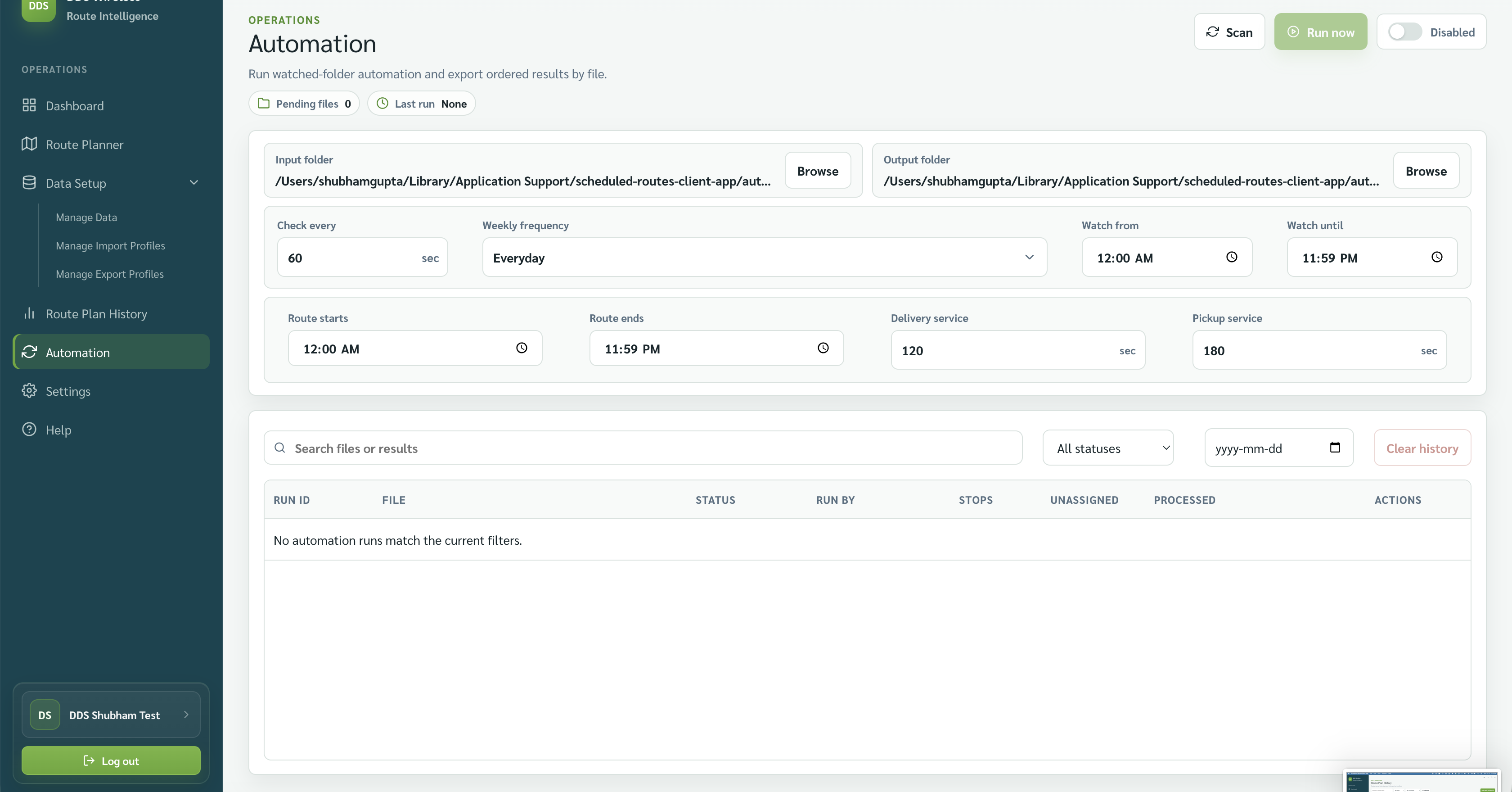
Configure folders
- Open Automation.
- Choose the Input folder and Output folder with Browse.
- Confirm the selected paths are accessible to the workstation.
Configure the schedule
Set the visible timing controls, including Check every, Weekly frequency, Watch from, and Watch until. The screen also shows default route start/end and delivery/pickup service values.
Run or enable
- Scan checks the input folder for any new files right now.
- Run now runs the automation once, immediately, without waiting for the next scheduled time — useful for testing, or to process files before the schedule kicks in. It is available only when Automation is turned on.
Use the toggle to enable Automation after testing the folders and schedule.
What Automation uses
Automation reads files from the input folder using your saved import mapping, and writes results to the output folder in the same format the files were imported in.
Related: Saved mappings · Manage export formats · Logs and diagnostics