Clear data vs Reset workstation
Applies to v1.7+ · ~3 min read · Settings and support
There are two very different ways to remove data, and only one lives in Settings. Confirm the scope before continuing.
Clearing the jobs in a plan
There is no separate "Clear Data" control in Settings in v1.7. To remove the jobs loaded into the current plan, use Clear Jobs on the Import & Validate Jobs step in Route Planner — it clears jobs in the context of the current route date and leaves your fleet, saved mappings, and export profiles untouched. See Add, replace, clear and manually add jobs.
Factory Reset
Settings shows Factory Reset in Maintenance.
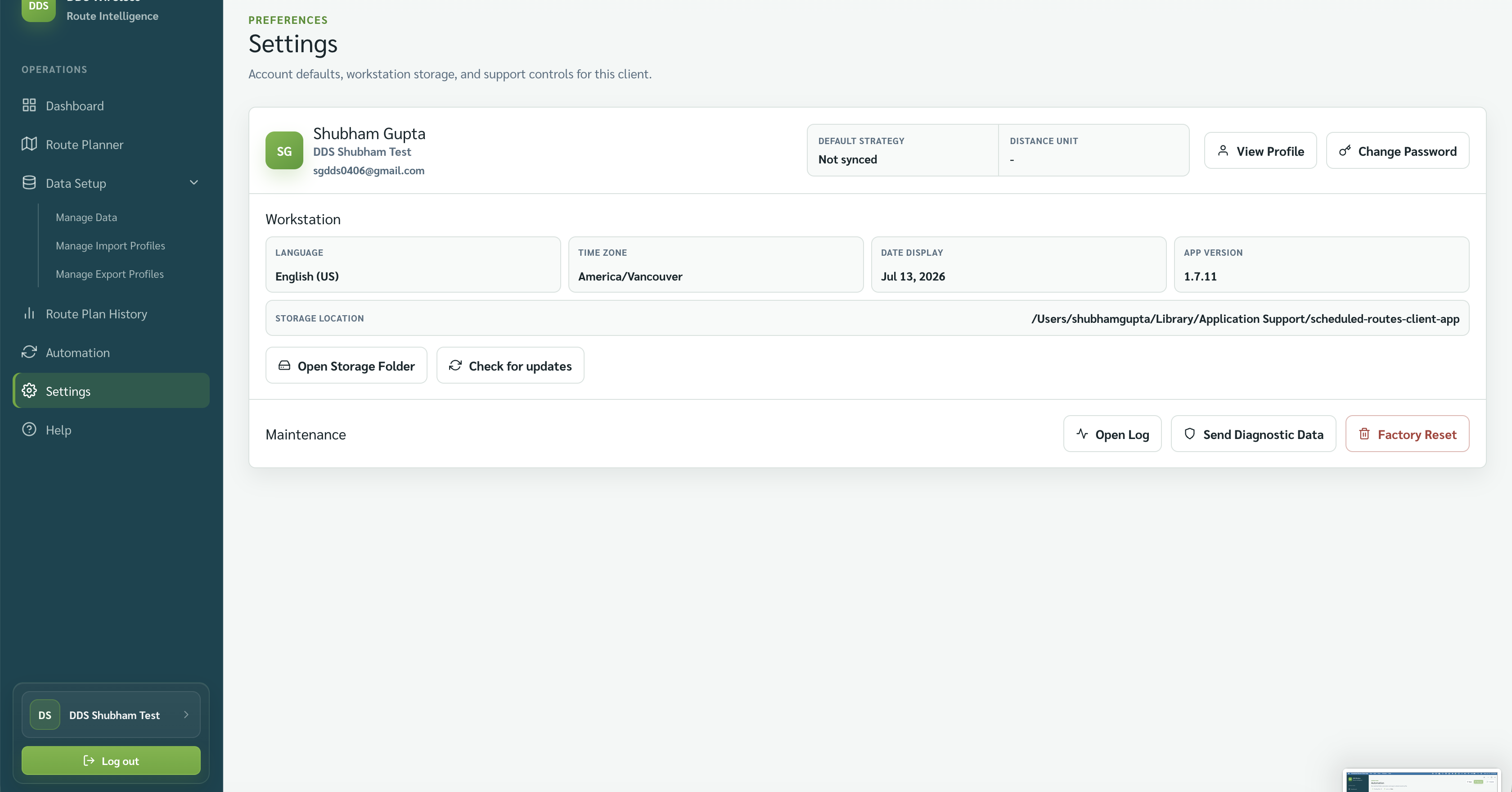
Factory Reset wipes everything
Factory Reset returns the app to a brand-new state. It removes all local data — account details, saved import mappings, export profiles, route plan history, exported files, local preferences, and Automation settings. There is no undo. Use it only when you intend to start completely fresh.
Before either action
- Finish any needed export.
- Open Route Plan History and confirm required manifests are present.
- Record the app version and storage location.
- Contact support if the confirmation message is unclear.
Related: Where did my data go? · Route Plan History · Logs and diagnostics